
MSIIn stock
SPATIUM M452 SSD PCIe 4.0 M.2 2280 500GB
- 500 GB
- PCIe 4.0
- 3600 MB/s
- Category
- NVMe SSDs
- Capacity
- 0.5 TB
- Size
- 2280
$78.99 ≈ 0.001034 BTC

PC Components
Shop all PC Components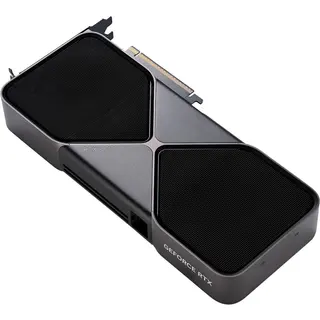 Blackwell & RDNA 4
New-generation graphics cards
GeForce RTX 50 and Radeon RX 9000, filtered by VRAM and length.
Shop now
Cooling
Shop all Cooling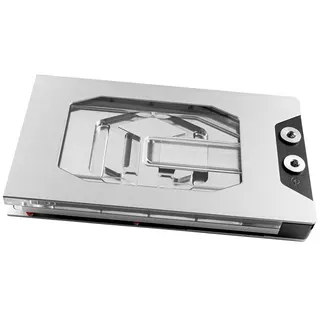 Custom loop
Water cooling parts
Blocks, radiators and fittings from EK, Alphacool and Watercool.
Shop now
Cases & Modding
Shop all Cases & Modding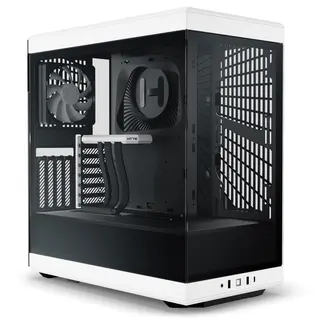 Showcase builds
Glass-panel cases
Dual-chamber and panoramic designs from Lian Li, Hyte and Fractal.
Shop now
Monitors
Shop all Monitors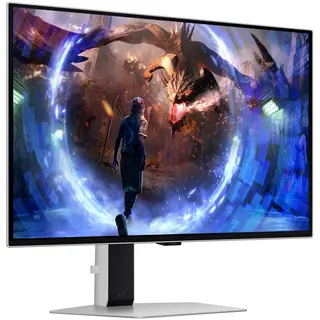 Pixel perfect
OLED gaming monitors
QD-OLED and WOLED panels for deep blacks and fast motion.
Shop now
Peripherals
Shop all Peripherals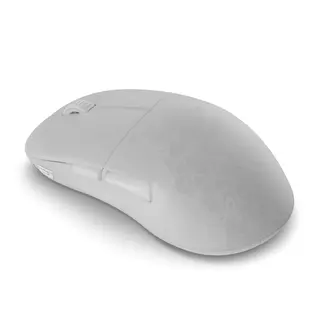 Desk setup
Keyboards & mice
Mechanical and Hall-effect boards, ultralight mice.
Shop now
Storage
Shop all Storage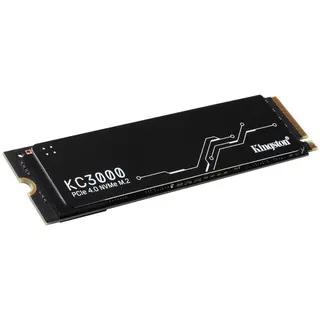 PCIe 5.0
Next-gen NVMe SSDs
Gen 5 drives for the fastest loads and transfers.
Shop now
Sim Racing
Shop all Sim Racing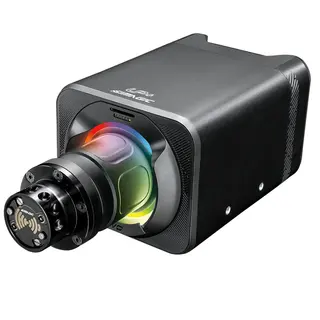 Direct drive
Wheel bases
Simucube, Moza, Simagic, Fanatec and more.
Shop now
Gaming & VR
Shop all Gaming & VR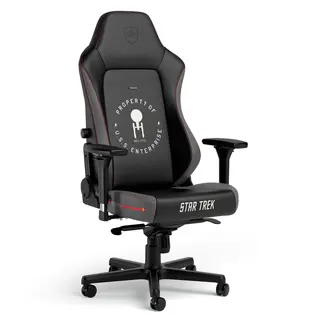 Long sessions
Gaming chairs
Ergonomic chairs from noblechairs, Razer and more.
Shop now
Networking
Shop all Networking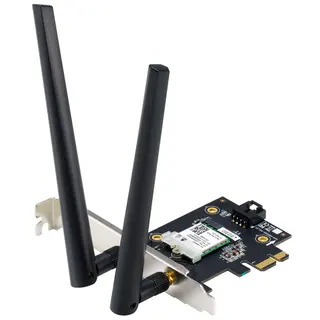 Home network
Faster connections
Routers, Wi-Fi adapters, network cards and switches.
Shop now
Laptops & PCs
Shop all Laptops & PCs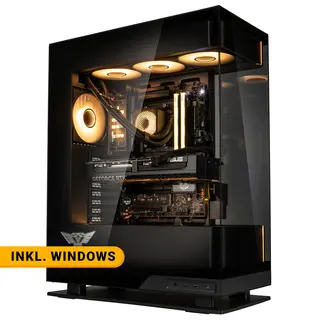 Ready to play
Gaming PCs
Ready-built systems from 1080p to 4K, with RTX 50 and RX 9000 graphics.
Shop now
M.2 NVMe SSDs, 2.5-inch SATA SSDs, 3.5-inch hard drives and Blu-ray and DVD drives for desktops, laptops and NAS units. Check your free slots and bays, and pay in BTC, ETH or USDT.
26 products
MSIIn stock
$78.99 ≈ 0.001034 BTC
KingstonIn stock
$94.99 ≈ 0.001244 BTC
MSIIn stock
$79.99 ≈ 0.001047 BTC
PatriotIn stock
$109.99 ≈ 0.00144 BTC
MSIIn stock
$47.99 ≈ 0.0006284 BTC
KingstonIn stock
$61.99 ≈ 0.0008117 BTC
PatriotIn stock
$119.99 ≈ 0.001571 BTC
CrucialIn stock
$159.99 ≈ 0.002095 BTC
LexarIn stock
$44.99 ≈ 0.0005891 BTC
KingstonIn stock
$139.99 ≈ 0.001833 BTC
SamsungIn stock
$169.99 ≈ 0.002226 BTC
Western DigitalIn stock
$129.99 ≈ 0.001702 BTC
LexarIn stock
$40.99 ≈ 0.0005368 BTC
KingstonIn stock
$81.99 ≈ 0.001074 BTC
CorsairIn stock
$109.99 ≈ 0.00144 BTC
CrucialIn stock
$67.99 ≈ 0.0008903 BTC
KingstonIn stock
$139.99 ≈ 0.001833 BTC
SamsungIn stock
$97.99 ≈ 0.001283 BTC
SamsungIn stock
$169.99 ≈ 0.002226 BTC
Western DigitalIn stock
$41.99 ≈ 0.0005498 BTC
LexarIn stock
$77.99 ≈ 0.001021 BTC
PatriotIn stock
$51.99 ≈ 0.0006808 BTC
Western DigitalIn stock
$129.99 ≈ 0.001702 BTC
PatriotIn stock
$83.99 ≈ 0.0011 BTC
Western DigitalIn stock
$48.99 ≈ 0.0006415 BTC
SamsungIn stock
$99.99 ≈ 0.001309 BTC
Showing 1–26 of 26
Before choosing a drive, check which connections your PC or laptop has free:
A typical setup in 2026 is a 1 to 2 TB NVMe SSD for the operating system, apps and games, plus a larger second NVMe drive or a hard drive for media and archives. Some motherboards share bandwidth between M.2 slots and SATA ports or PCIe slots, so read the manual before filling every slot.
Moving to a new drive? Clone the old one with the manufacturer's migration tool, a cloning utility or a cloning dock, then extend the partition to use the full capacity. Drives larger than 2 TB need a GPT partition table, the default on current Windows installs. Our NVMe SSD guide explains PCIe generations, endurance and heatsinks.
Going deeper: NVMe SSD buying guide 2026: PCIe 5.0 vs PCIe 4.0

Shop by department
Show prices in
Your cart
Your cart is empty
Start with a top category:
Shipping calculated at checkout. Pay with BTC, ETH or USDT — rate locked when you check out.
Compare 0/4
Compare


